 Starix Orbit
A colleague reports a computer problem
Ask the other person to read out the device ID and connection password, then connect and work directly, without walking over to their desk.
Enter the device ID and connection password to see the other person's screen. Explain with text chat and the whiteboard, have the computer lock automatically when you finish, and keep a record of the session.
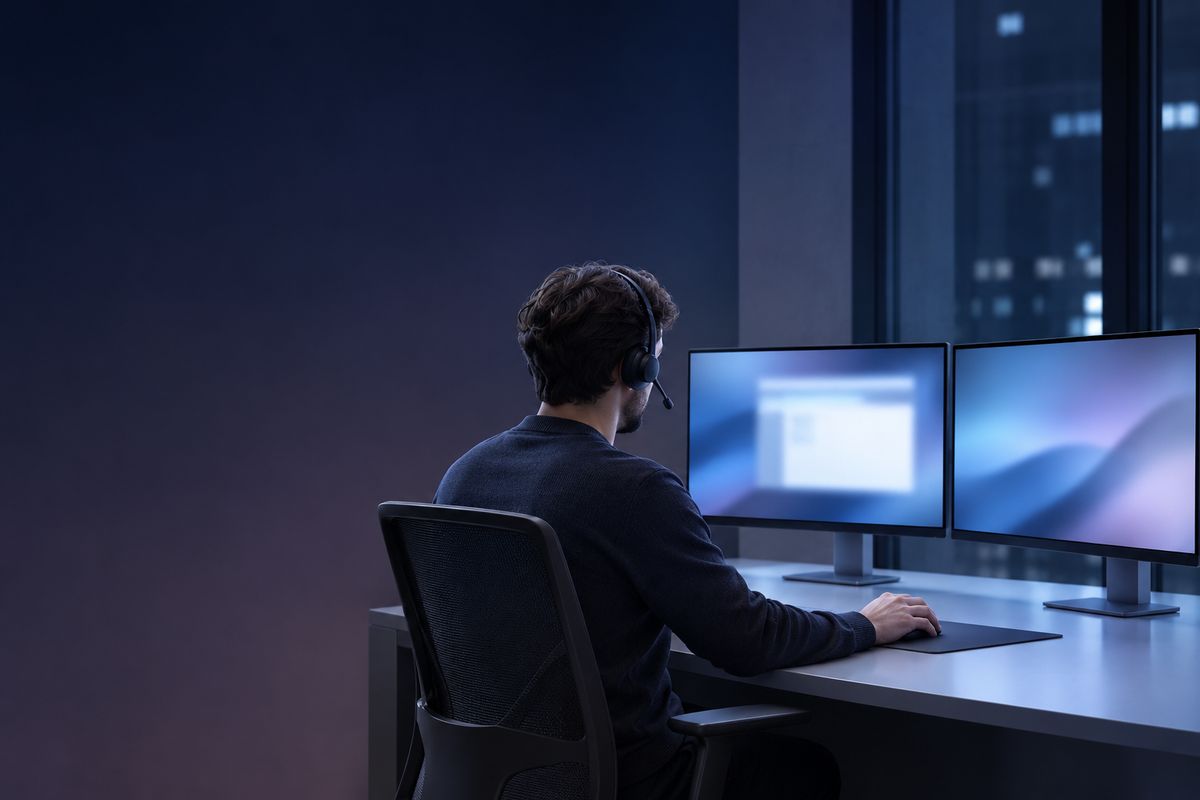
Ask the other person to read out the device ID and connection password, then connect and work directly, without walking over to their desk.
Circle the key points on screen with the whiteboard and explain with text chat. The other person follows along once and has it.
Use file transfer to send the installer over, and send Ctrl + Alt + Del or restart when needed.
Link the computers at remote sites to your team account. After that you can connect and handle things at any time, without waiting for someone to answer.
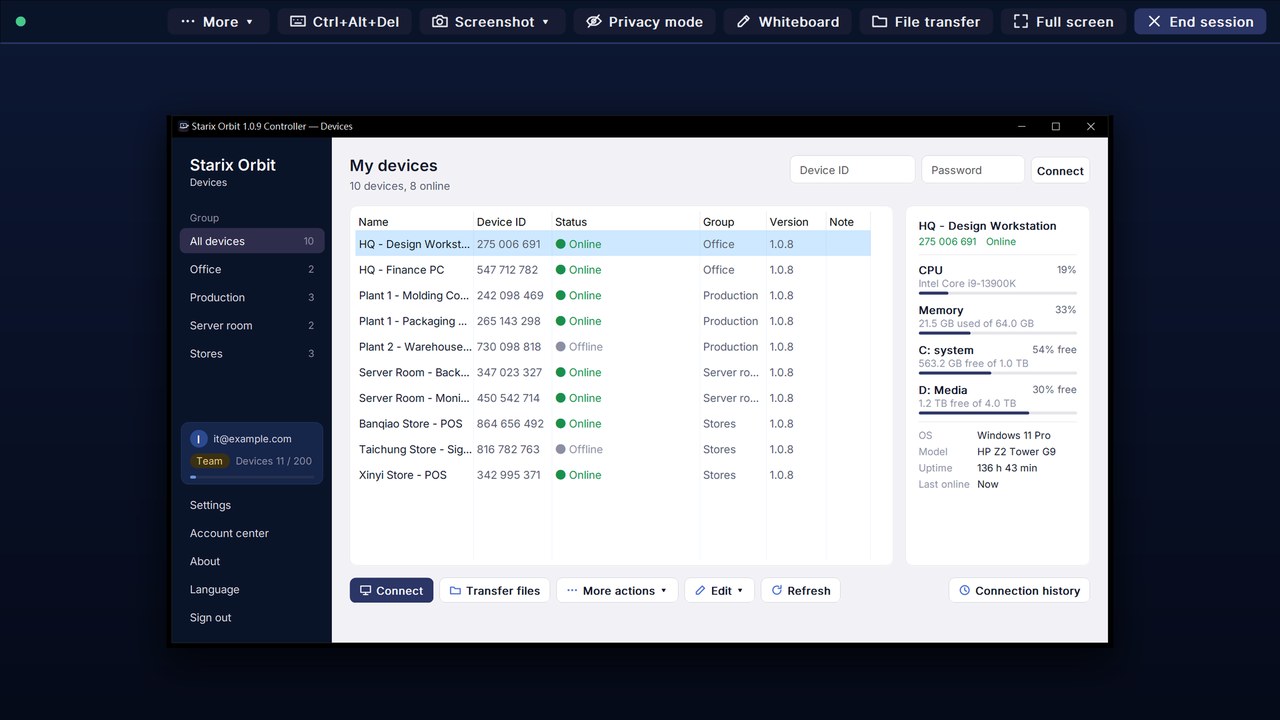
Text chat, whiteboard, screenshots, recording and file transfer are all at the top of the screen. Copy and paste text, files and images directly.
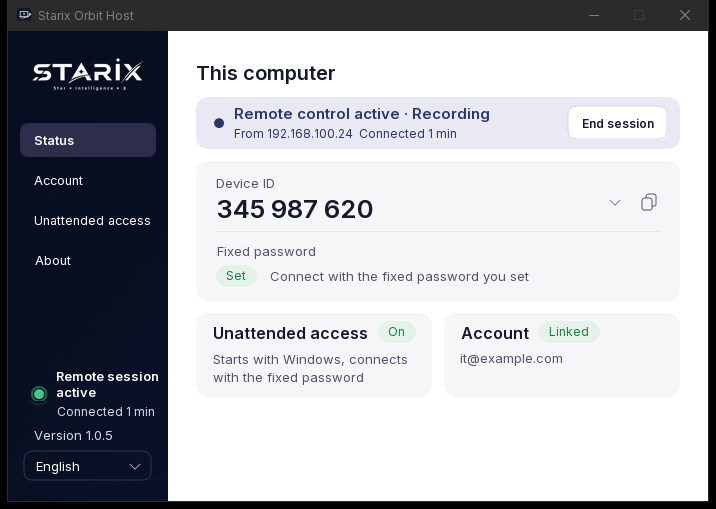
The computer being controlled shows "Remote control active" and the operator's name, and the person at the computer can end the session at any time.
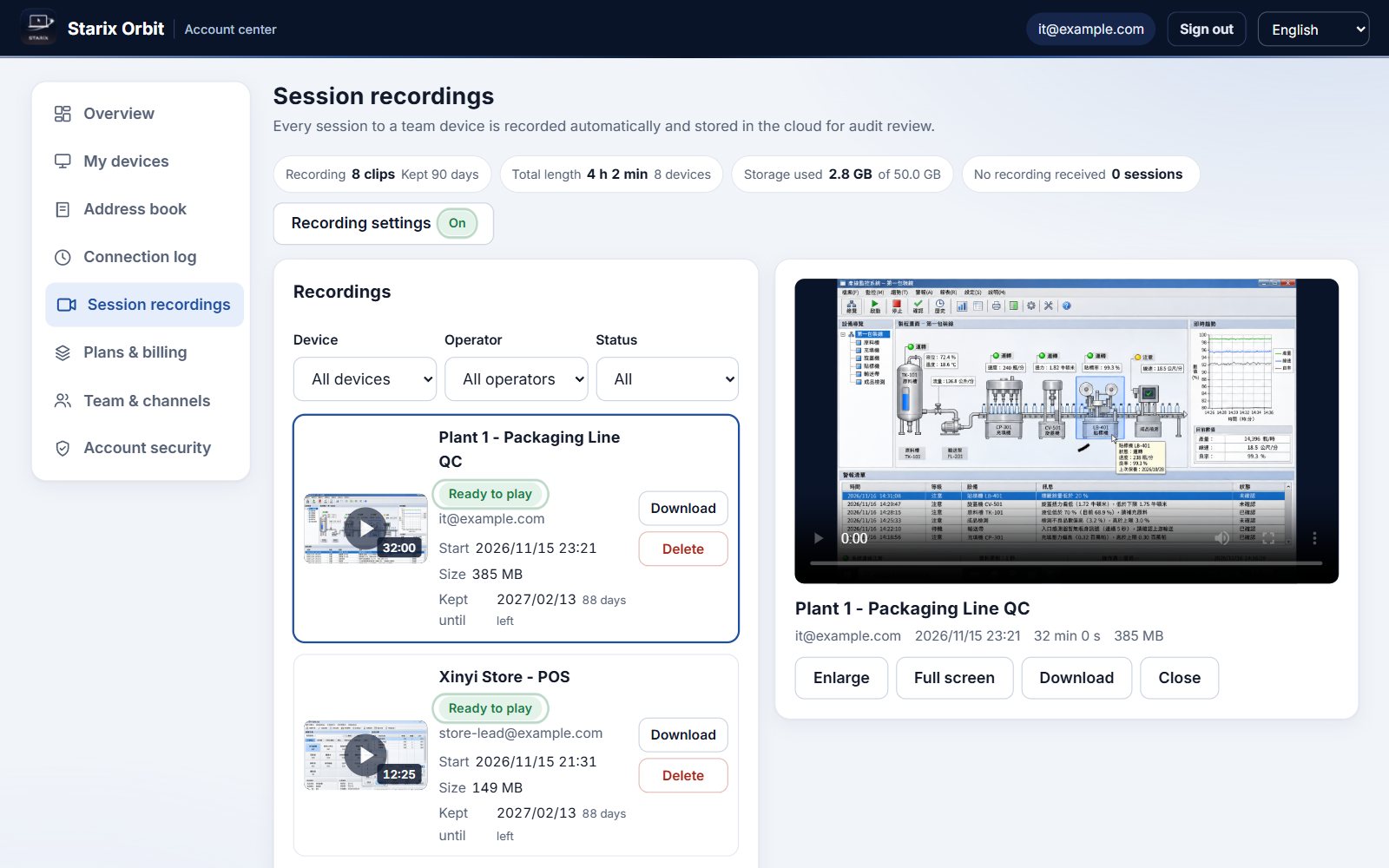
The Account center records who connected to which computer and when, and which files were transferred. Team also keeps session recordings.
Control it directly with your keyboard and mouse, with low latency and quality that adapts to your network.
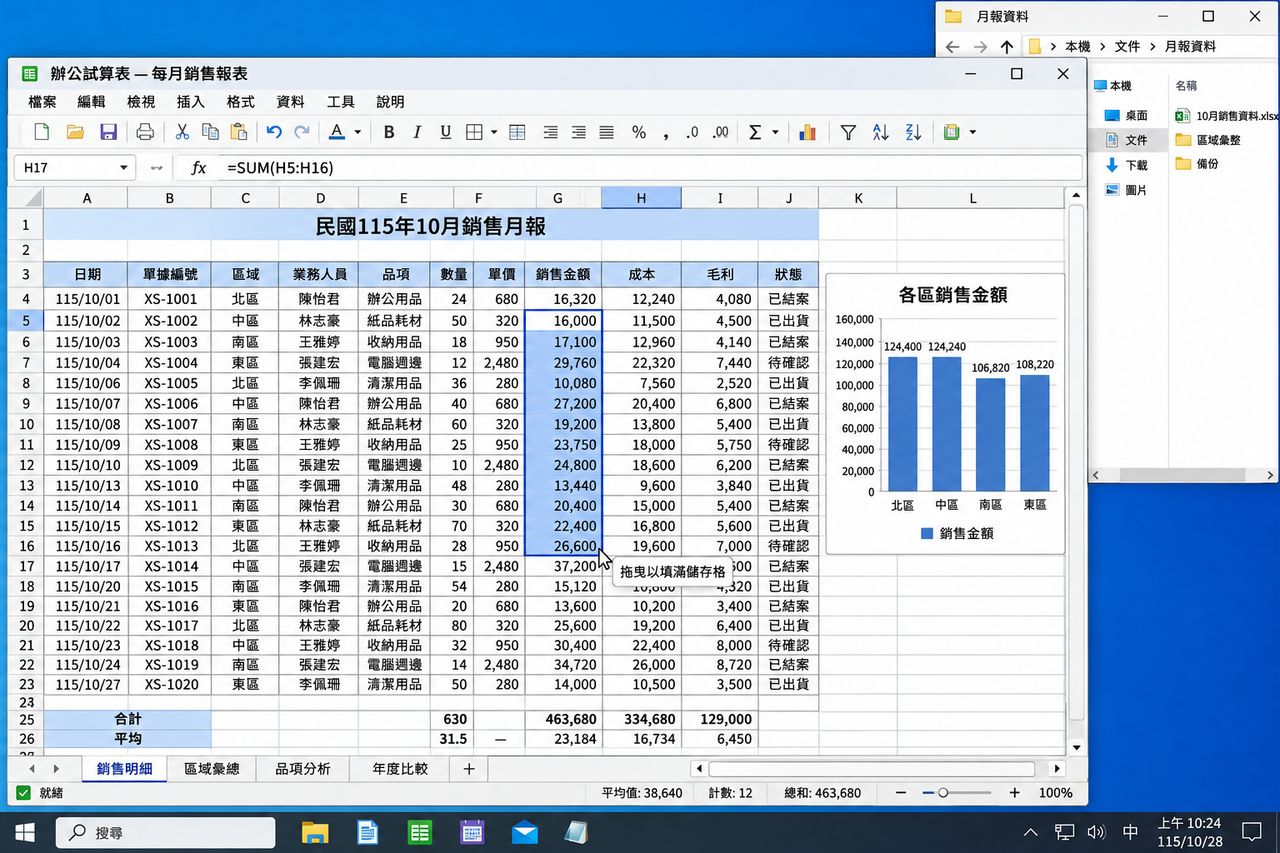
Download and install the Starix Orbit Host on the computer you want to control and sign in to your account. The computer then appears in your device list.
Set a fixed connection password in the Host and turn on unattended access. From then on it is ready to connect as soon as it boots, with no one on site.
Open the Controller on your own computer, sign in, select the device from the device list and click Connect.
Connect as soon as you download. Upgrade in the Account center.
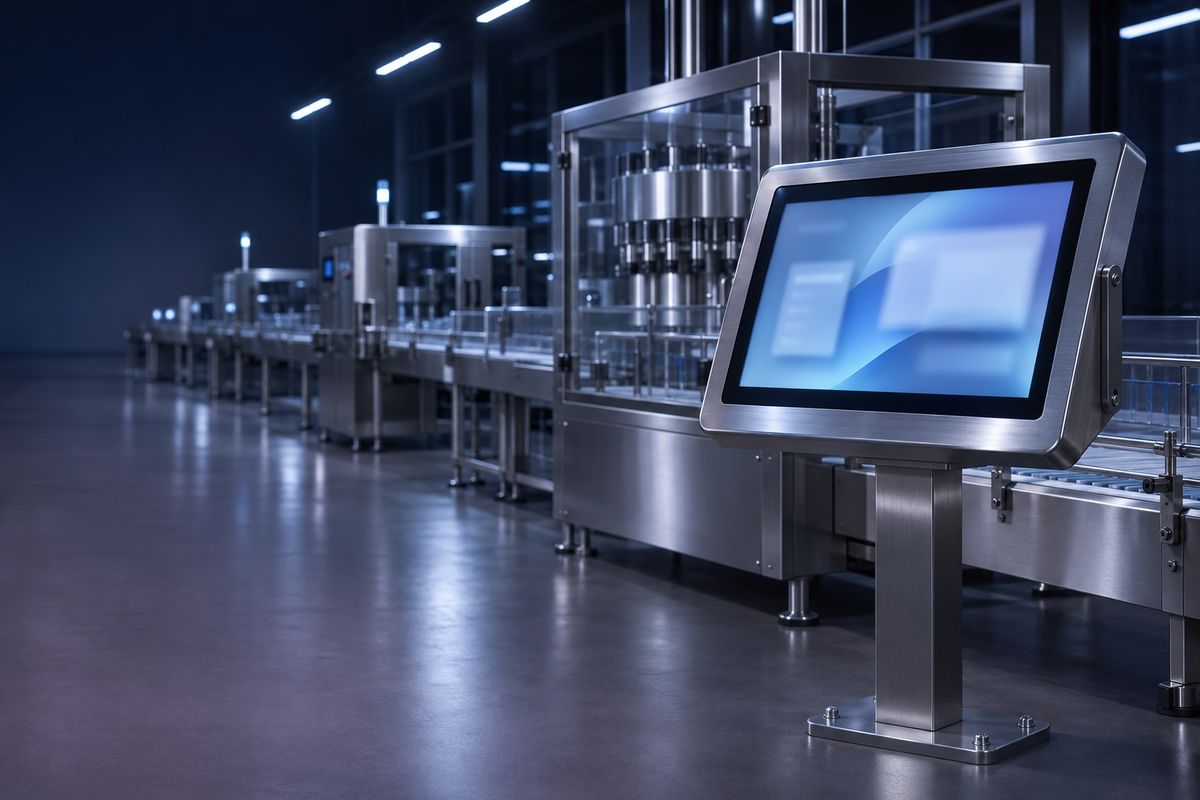 Production line equipment
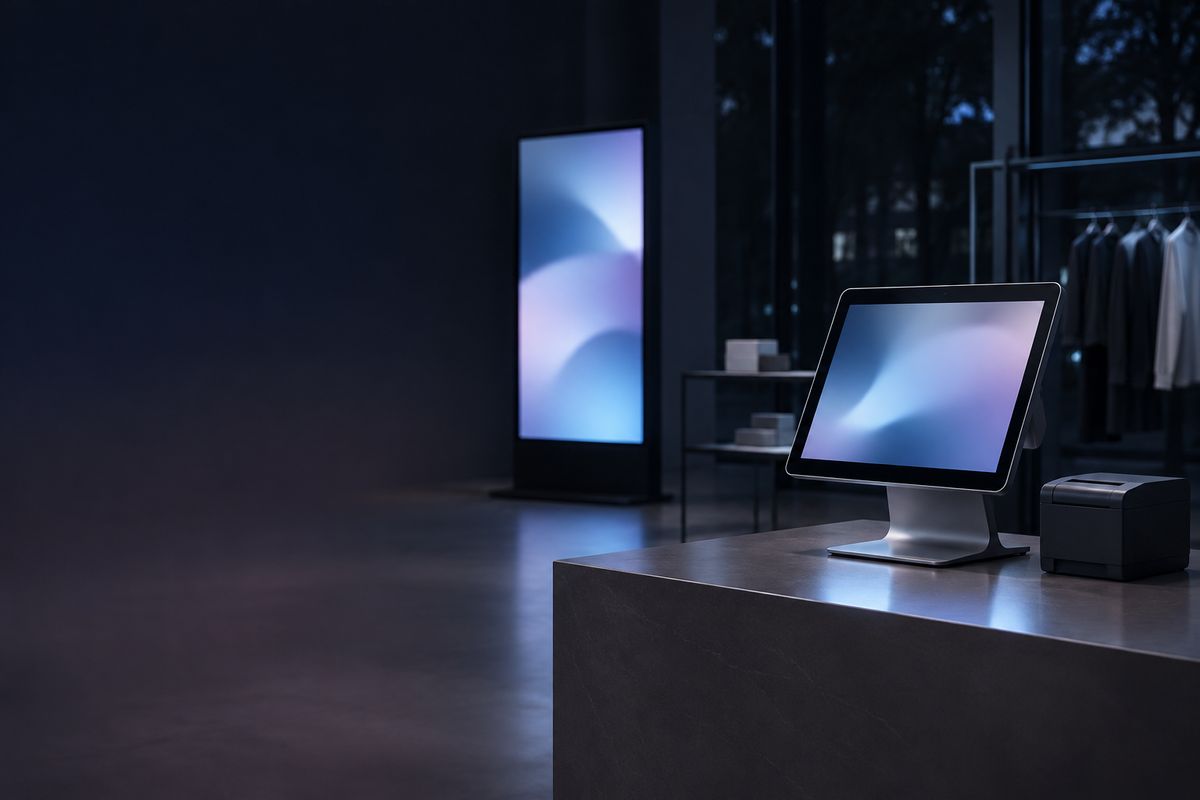 Store registers and signage
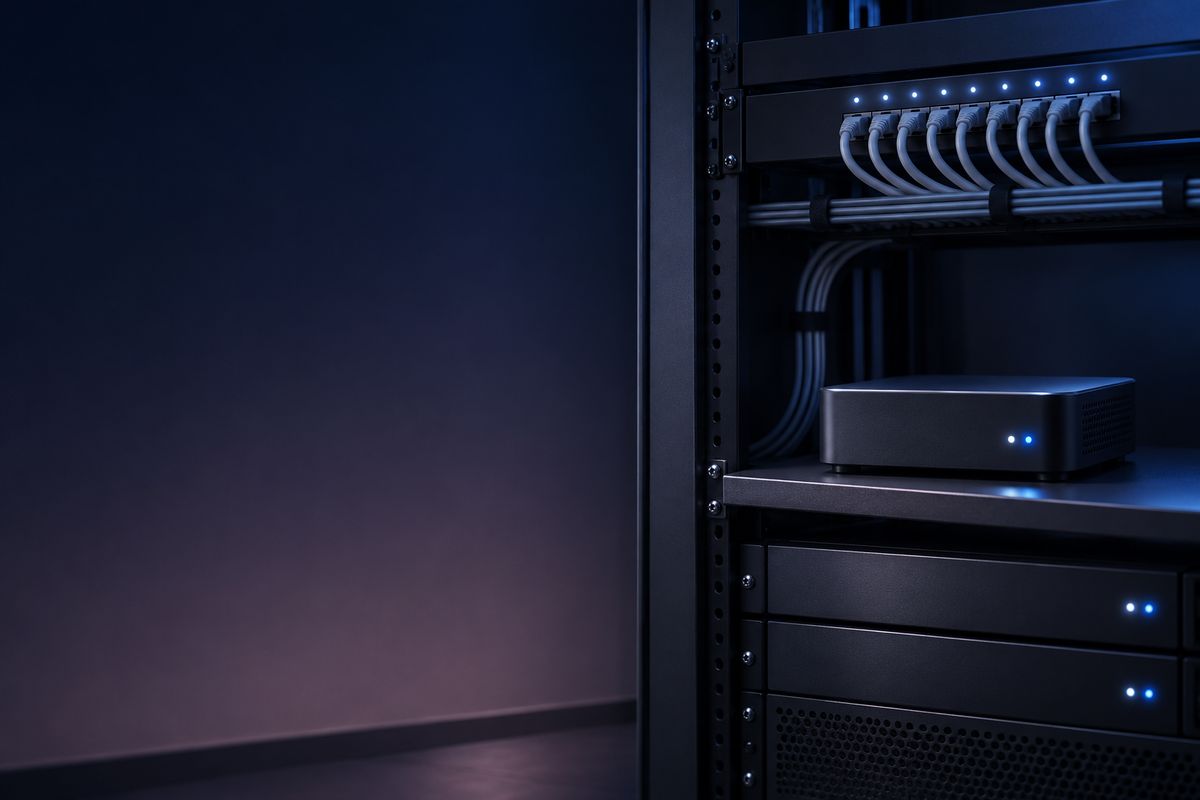 Server rooms and headless computers
 Working from home or on the road
 Design and media workstations