 Starix Orbit
You need a file from the office
Connect to your office computer and open the file there, or use file transfer to bring it to your own computer.
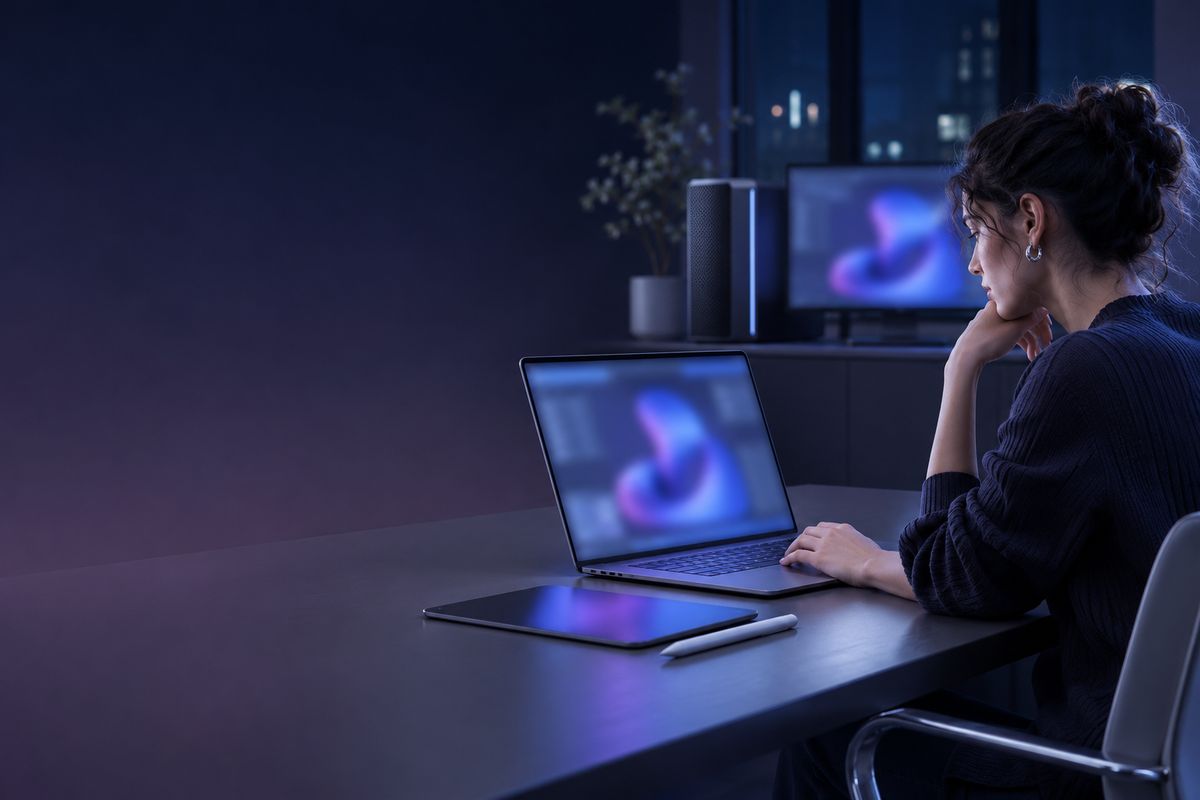
Open your office computer from home or on a business trip, with your files, software and multiple monitors just as they are at work. Data stays on the office computer, and the laptop only displays and controls.
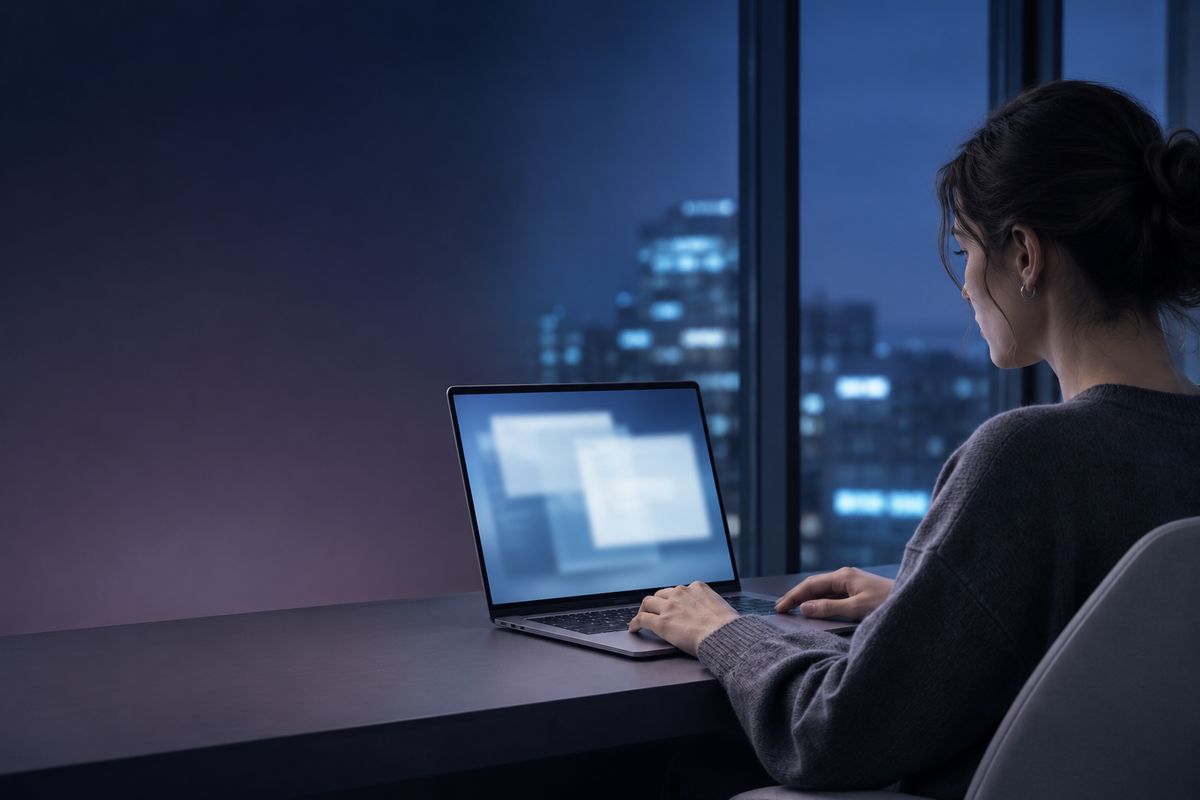
Connect to your office computer and open the file there, or use file transfer to bring it to your own computer.
Use licensed software and internal systems as usual, with nothing to reinstall on your laptop.
Connect to your office computer from a hotel or a client's site, with quality that adapts to your network.
Connect to save your work, lock or shut down. A computer that is shut down can be powered on again later with Wake-on-LAN.
The Host starts with the computer and works on the sign-in and lock screens. Connect with the fixed connection password you set.
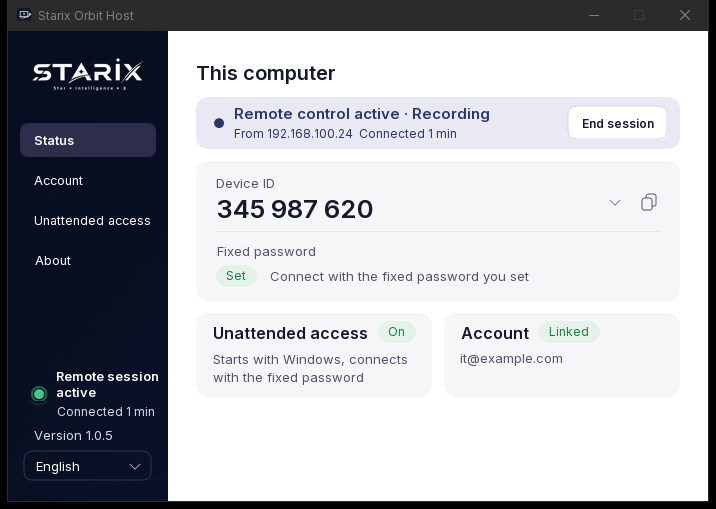
Up to 4K, adjusted automatically to network conditions. Switch between full-screen and windowed modes at any time, and switch between multiple monitors one by one.
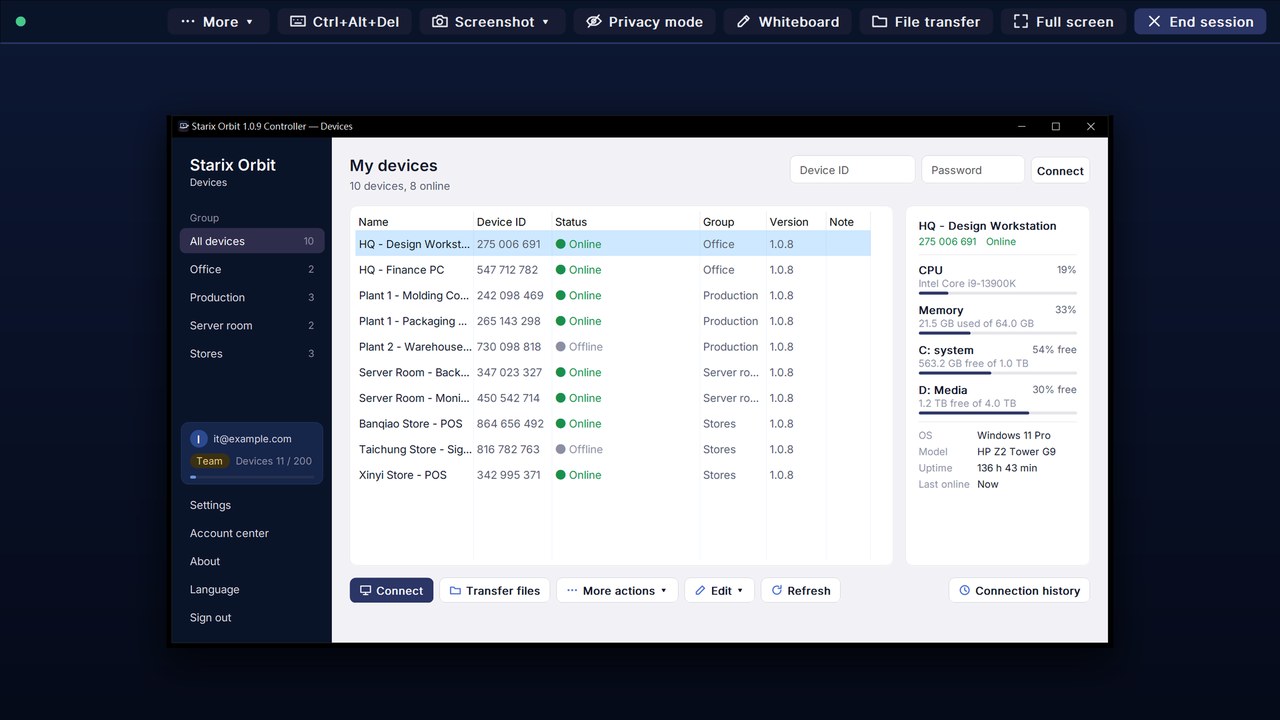
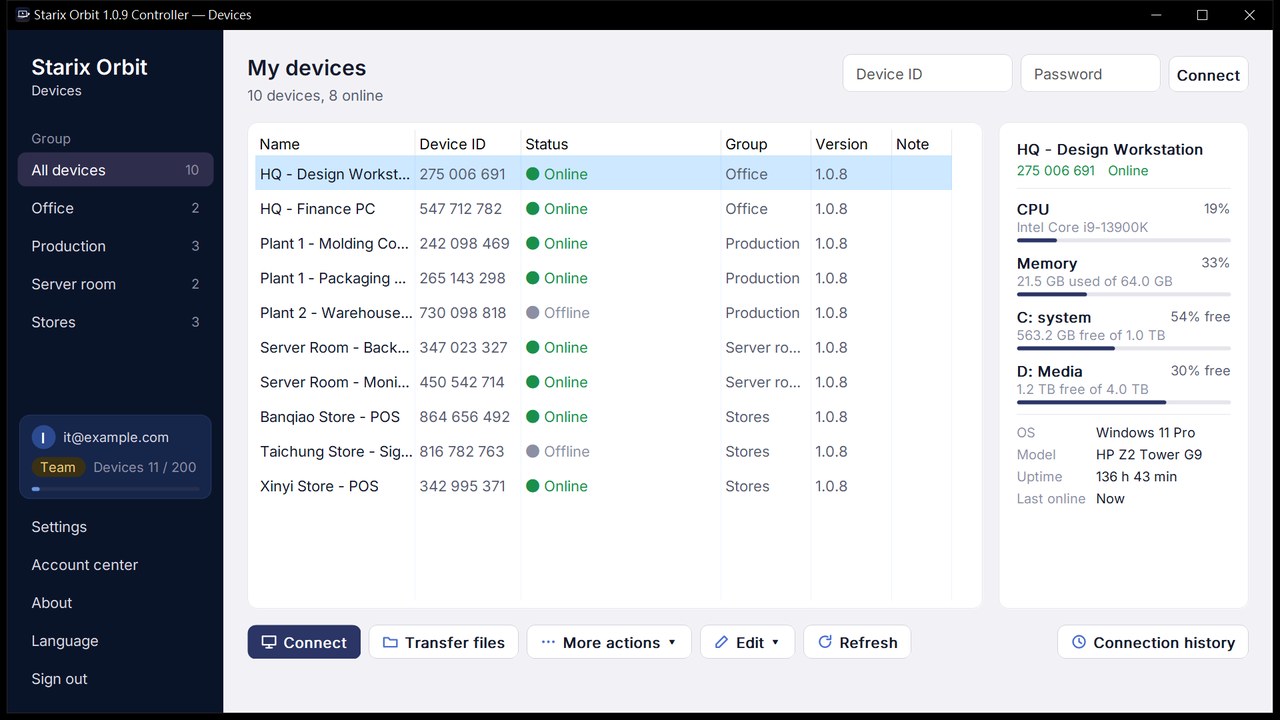
After you sign in, your linked computers are listed in Devices. See their online status at a glance and select one to connect.
Control it directly with your keyboard and mouse, with low latency and quality that adapts to your network.
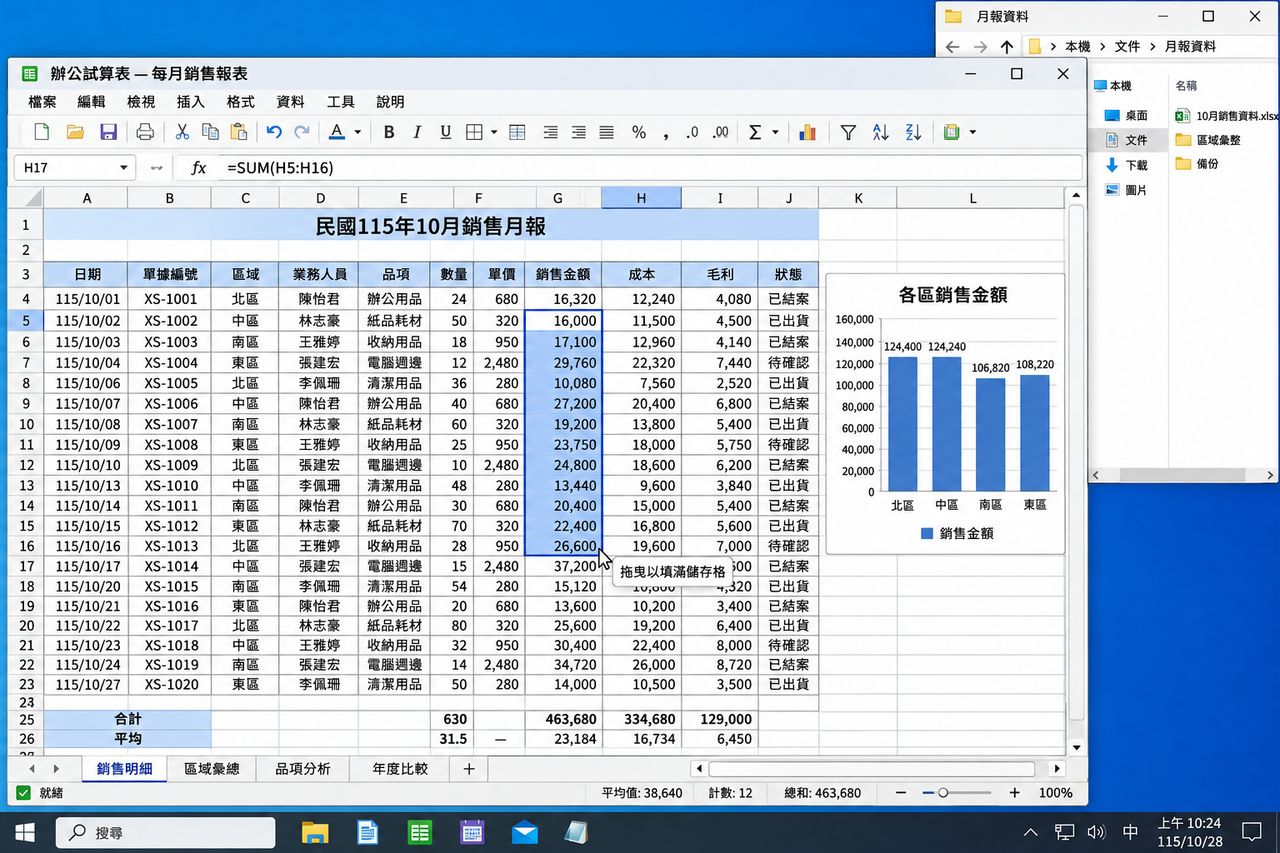
Download and install the Starix Orbit Host on the computer you want to control and sign in to your account. The computer then appears in your device list.
Set a fixed connection password in the Host and turn on unattended access. From then on it is ready to connect as soon as it boots, with no one on site.
Open the Controller on your own computer, sign in, select the device from the device list and click Connect.
Connect as soon as you download. Upgrade in the Account center.
 Production line equipment
 Store registers and signage
 Server rooms and headless computers
 Remote IT support
 Design and media workstations