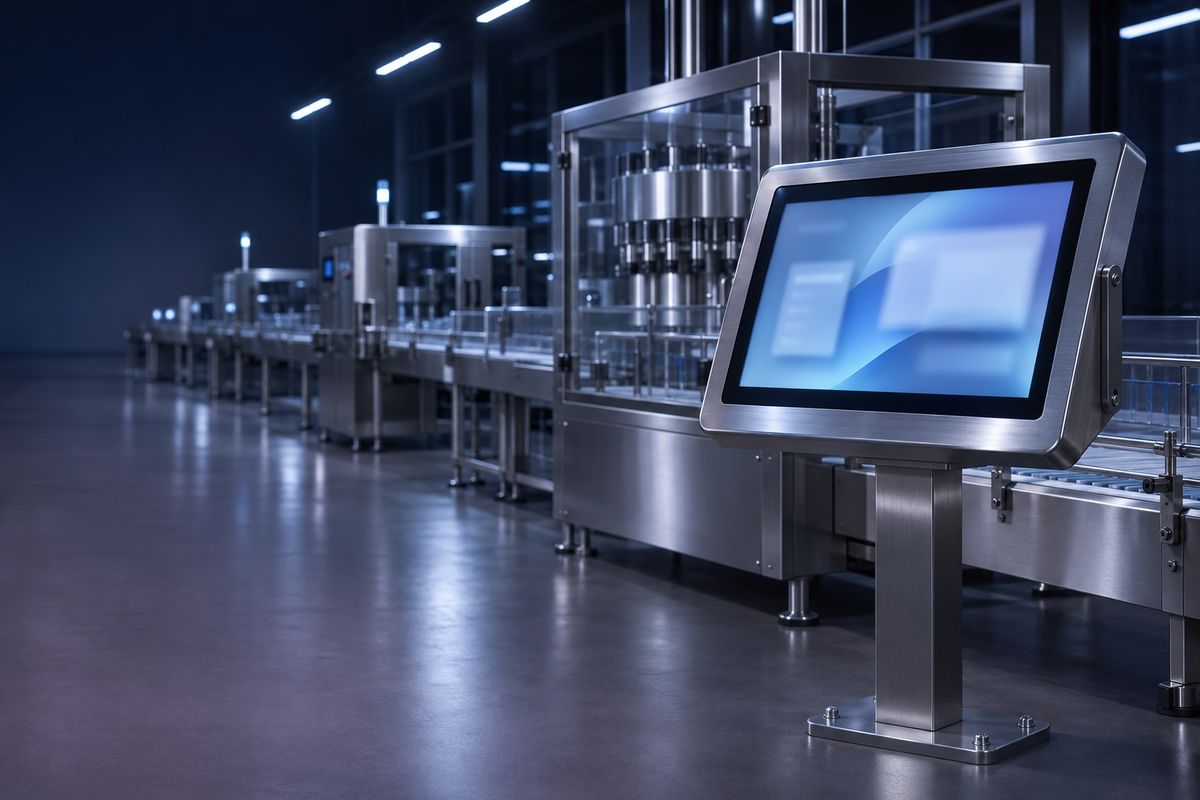
Production line equipment
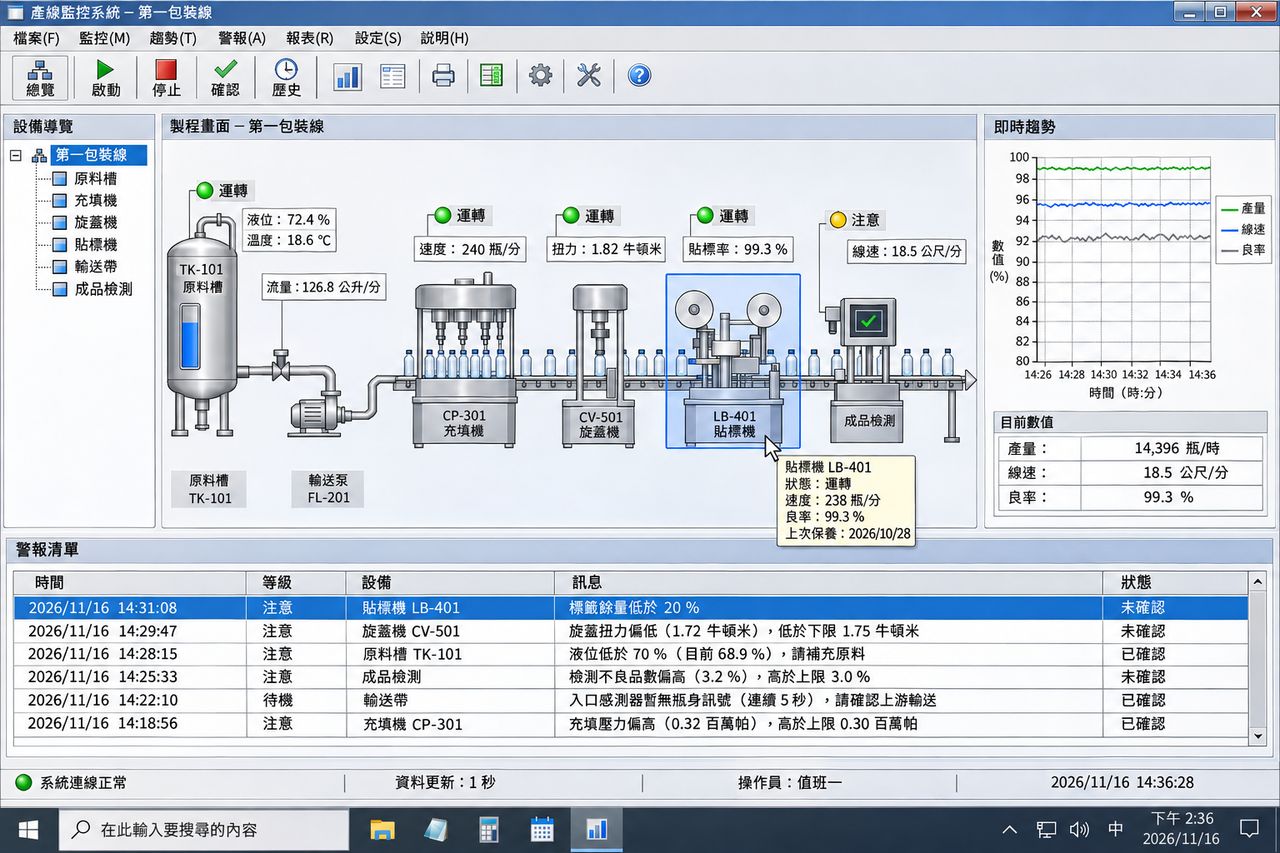
Production control PCs are ready to connect as soon as they boot, so you can adjust parameters and troubleshoot from the office.
- A machine raises an alarm
- Support across plants
- Remote maintenance by equipment vendors
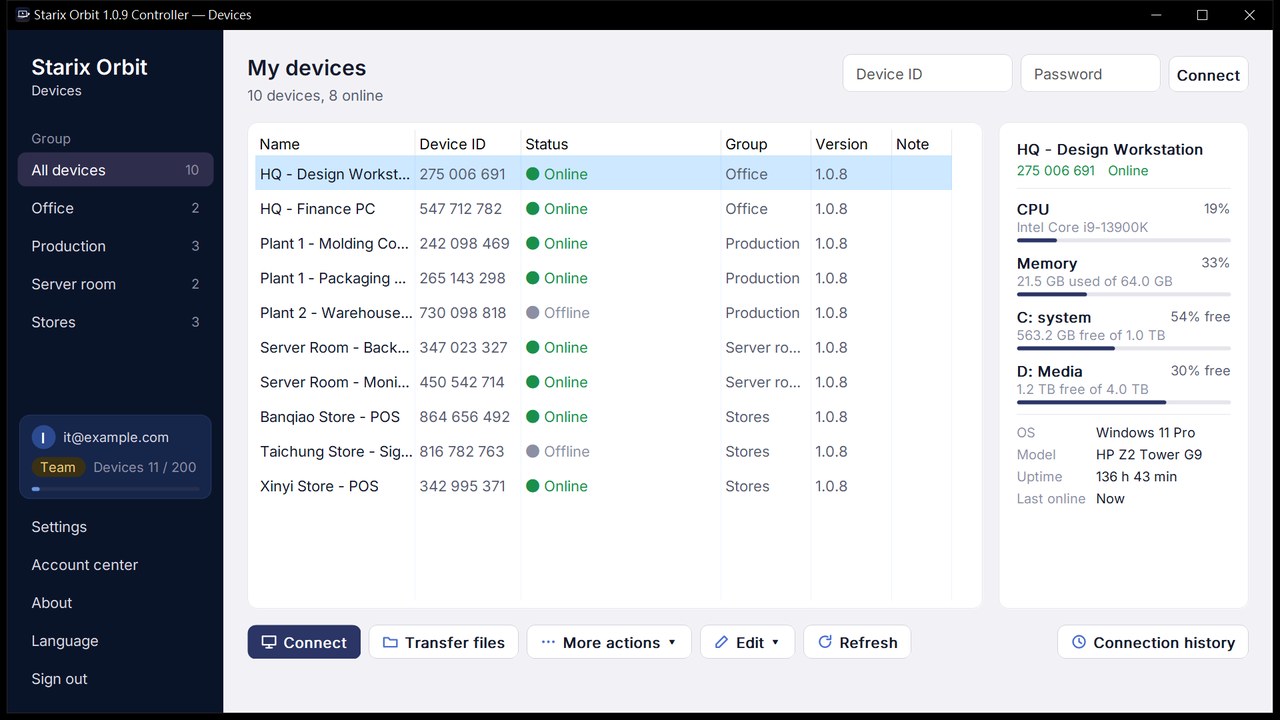
For the computers and IoT devices on your production lines, in your stores and in your server rooms:
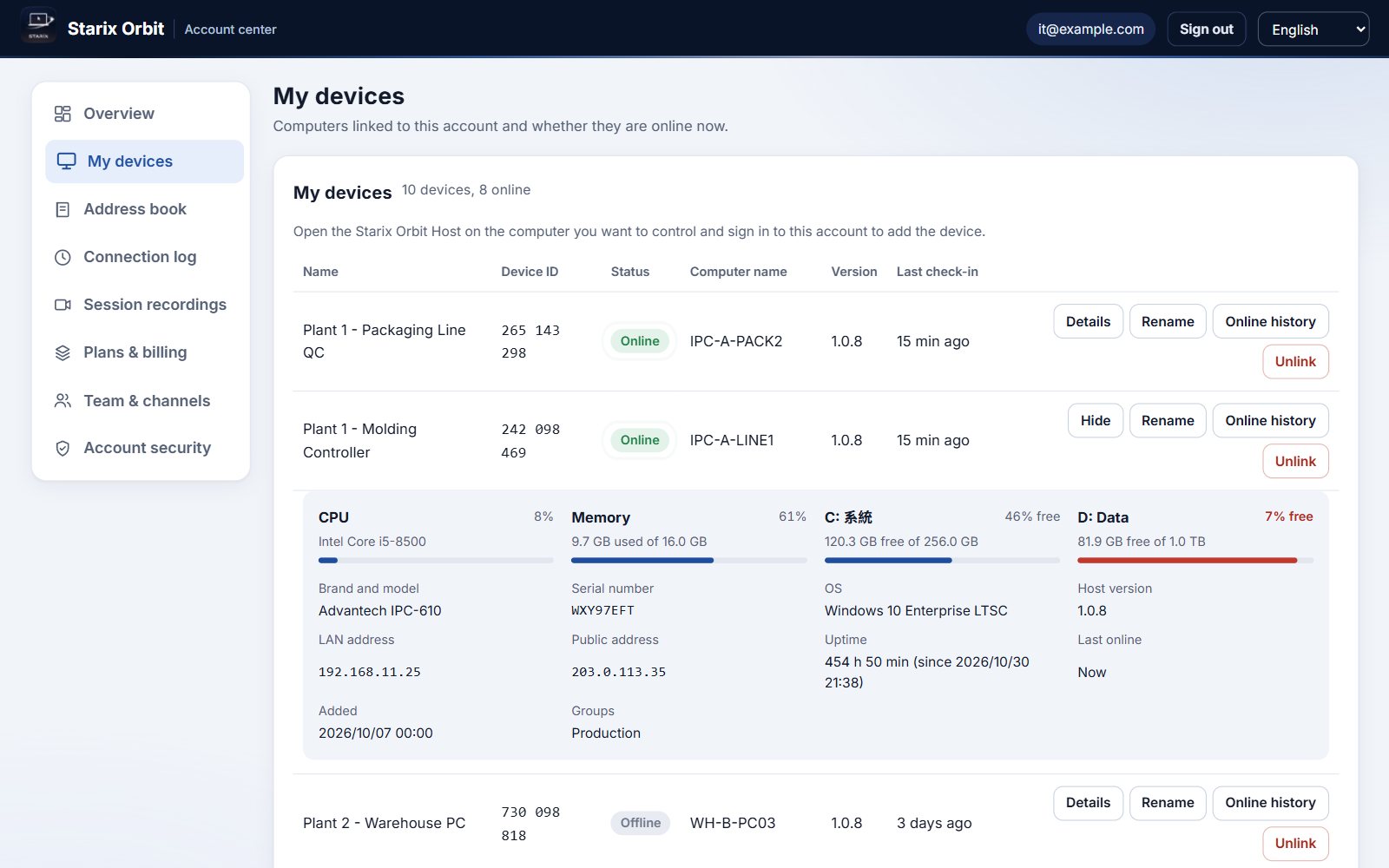
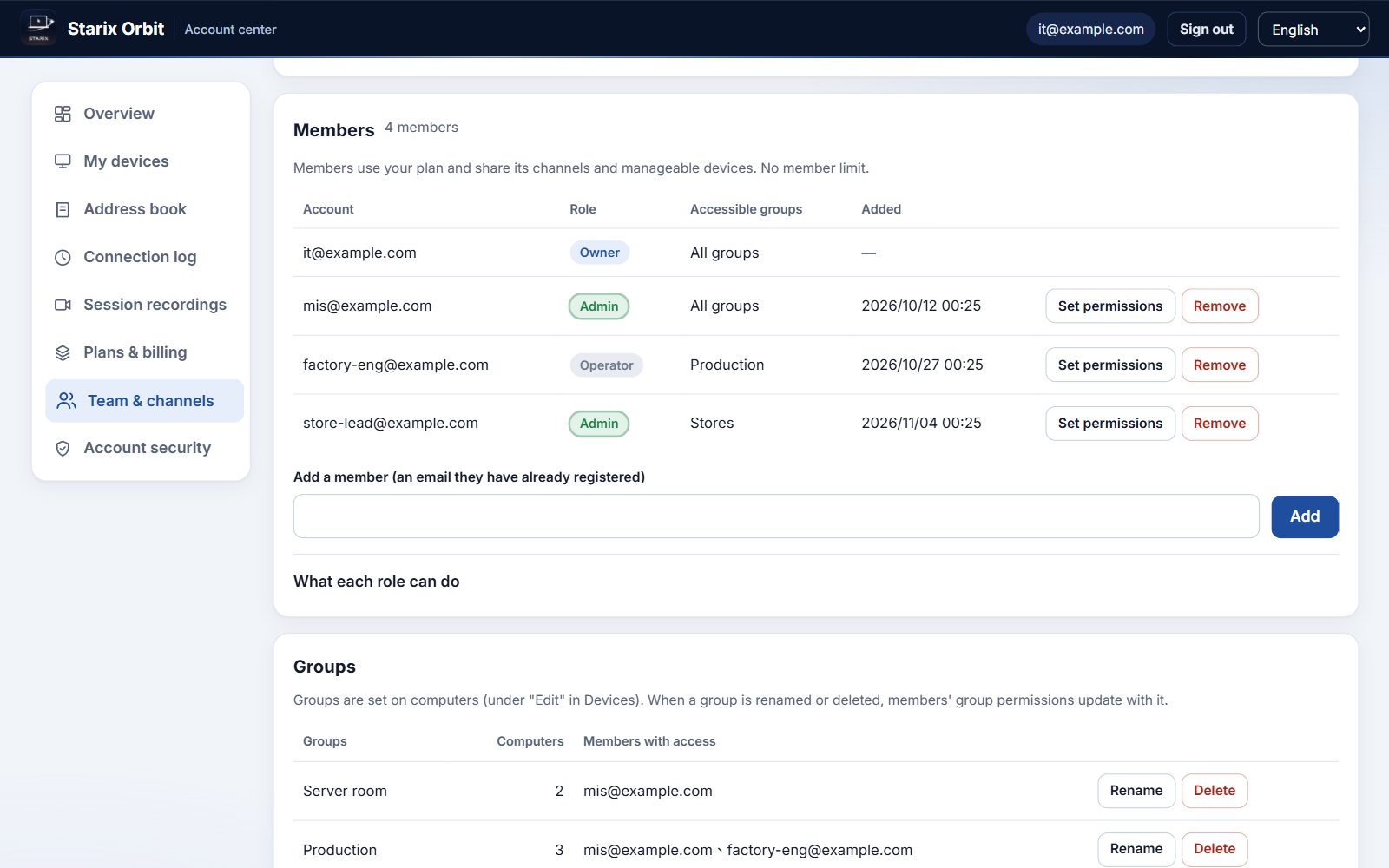
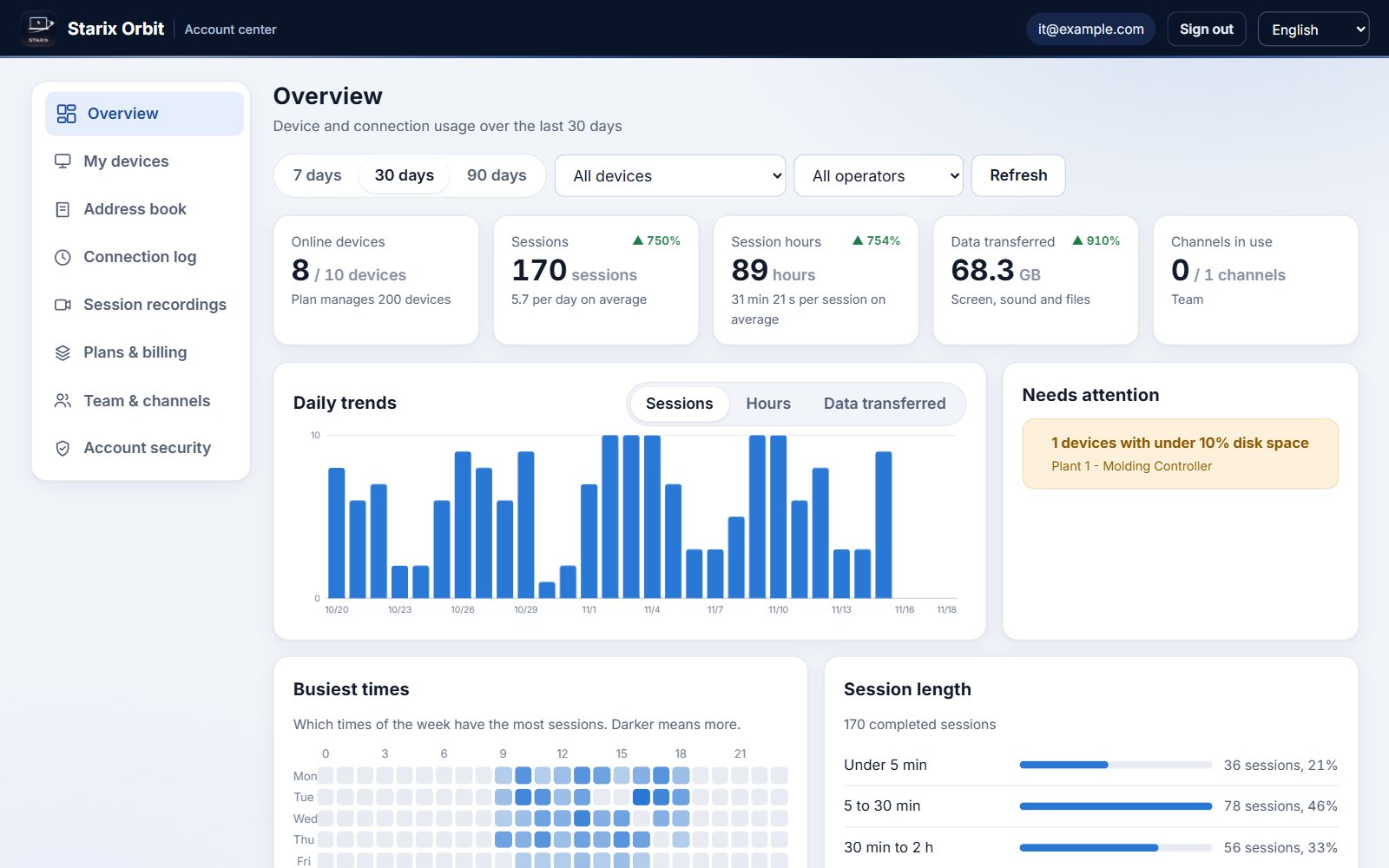
device status, system info, session recordings and access control, managed from one account.
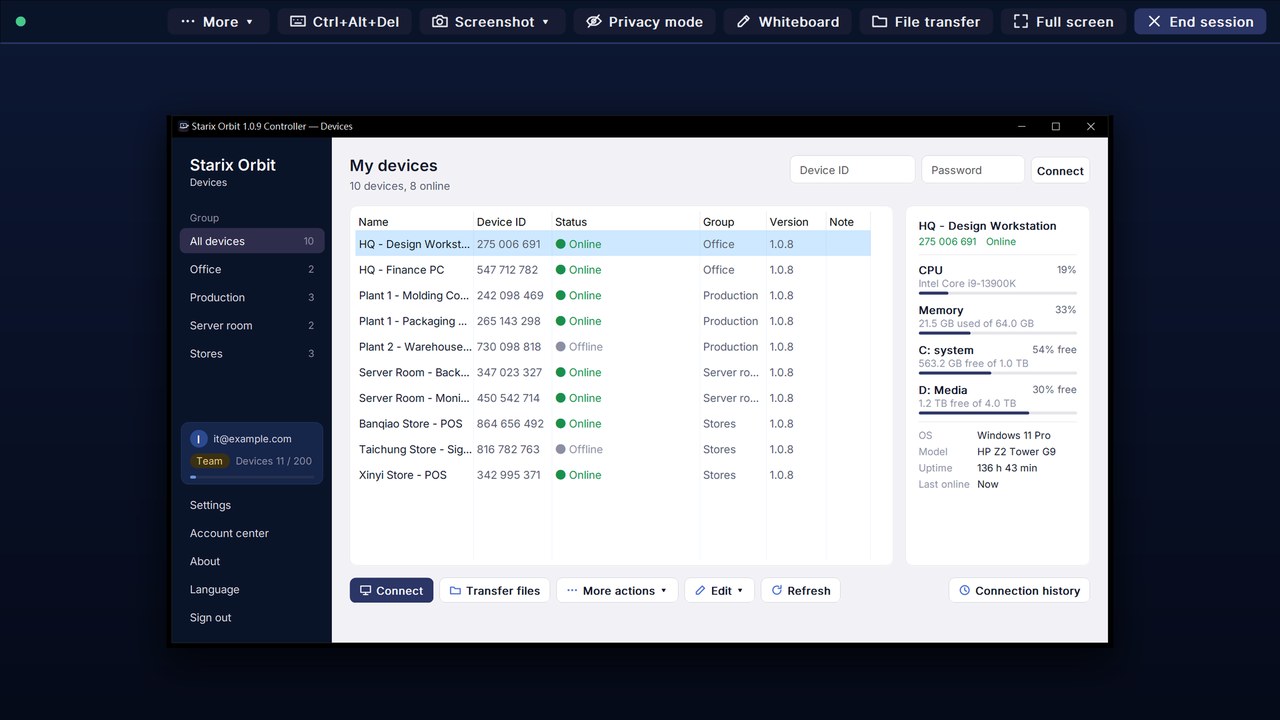
10 devices, 9 online
Select an item on the left to switch screens, then select a highlight below the screen to light up the matching area.


Enter a join code on site and the device goes straight into the group you chose.
Power on devices that are shut down or asleep, right from Devices.
Update the Host from the Controller to keep devices at every site on the latest version.
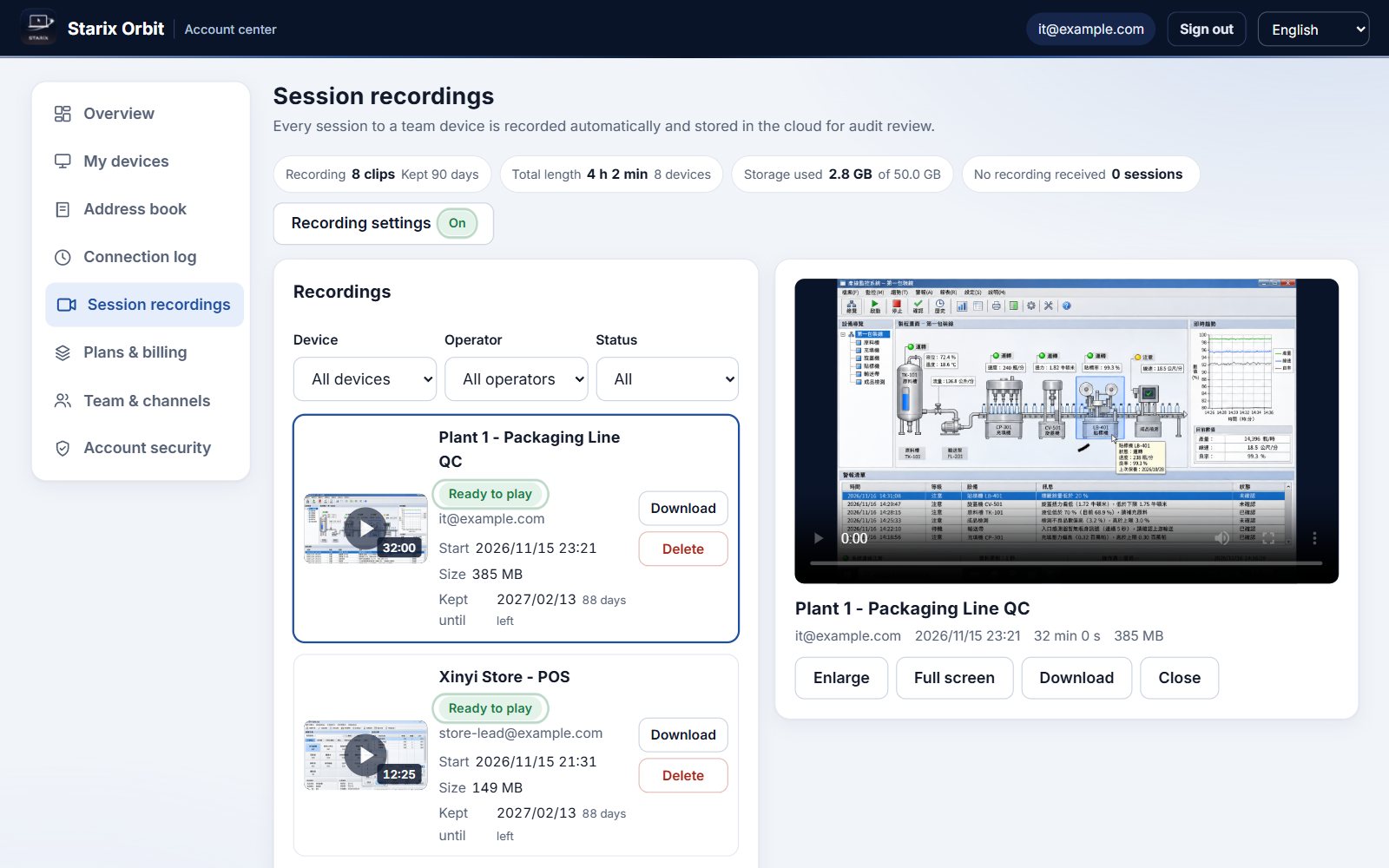
Look up and download who connected to which device, and when.
Connect to several devices from one Controller and switch between them in the list.
Use your Google account to sign in to both the Account center and the Controller.
Wherever a device needs attention, handle it from where you are.
Production control PCs are ready to connect as soon as they boot, so you can adjust parameters and troubleshoot from the office.
Manage each store's registers and digital signage by group, and update content or resolve issues from headquarters.
Headless computers get a full desktop, and computers that are shut down can be powered on remotely with Wake-on-LAN.
When a colleague reports a problem, take over the screen, explain with text chat and the whiteboard, and have the computer lock automatically when you finish.
Open your office computer from home, with your files, clipboard and multiple monitors just as they are at work.
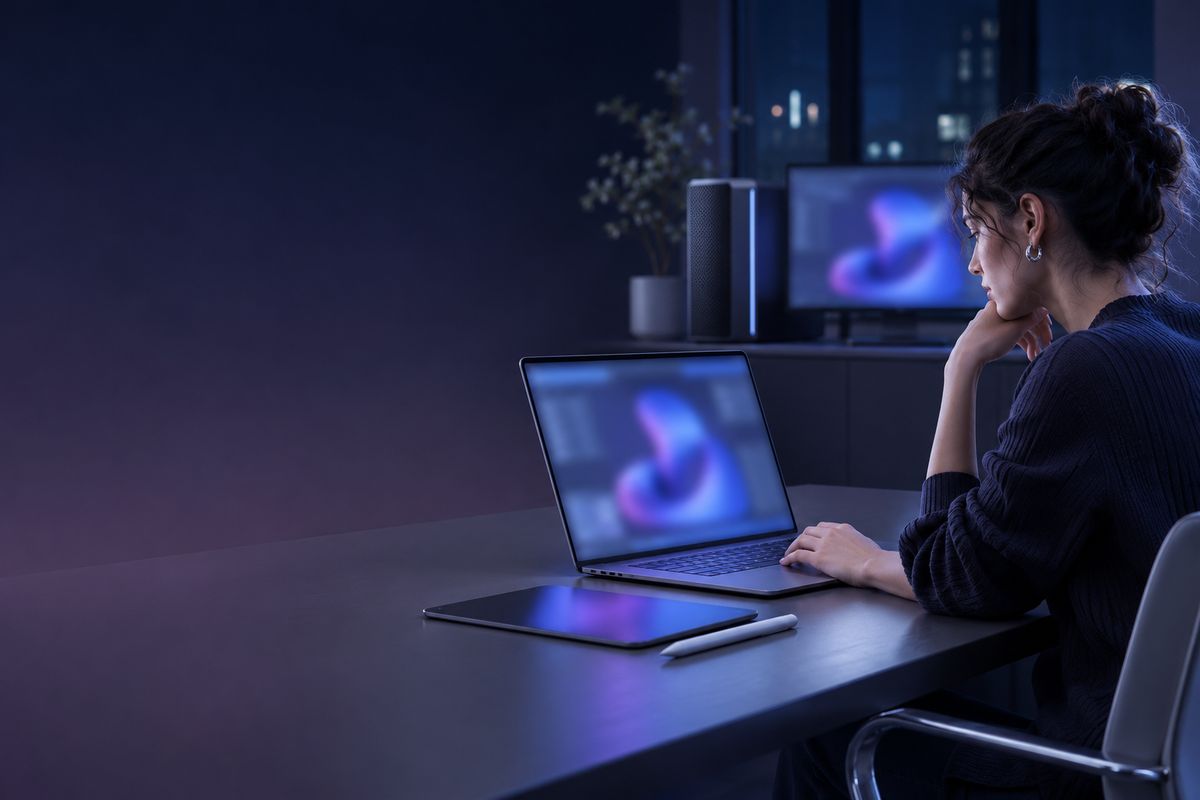
Run a high-performance workstation from a thin laptop, with 4K quality and remote sound, and record the session to keep.
Designed and developed in Taiwan. From connections and accounts to records, every layer has its own controls.
Screen, keyboard, mouse and files are all transmitted encrypted.
Add a verification code to account sign-in, with backup codes provided.
Ask the person at the computer before connecting. During a session the screen shows who is operating, and they can end it at any time.
The computer accepts connections only from its own account and team members.
The remote screen shows black while you work and locks automatically when you finish.
Look up who connected to which computer, and when, in the Account center at any time.
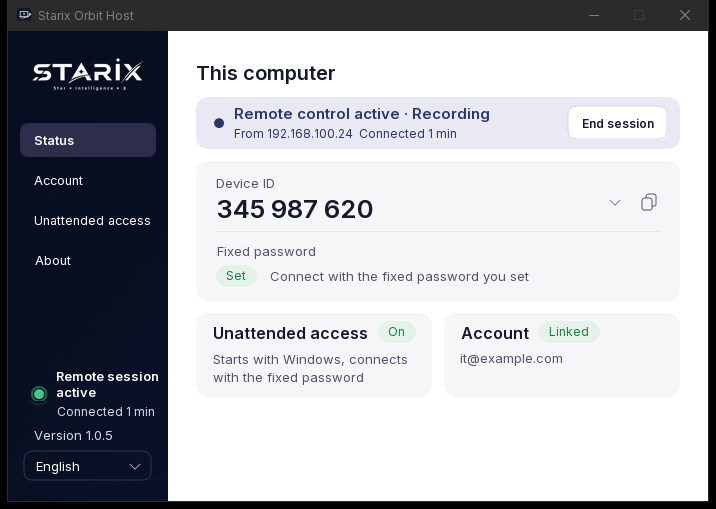
Open the Starix Orbit Host on the computer you want to control.
The Host shows the Device ID and connection password.
On your own computer, enter the ID and password, then click Connect.
Paid plans include a 7-day free trial. Pay yearly for the price of 10 months.
Help family or colleagues
Free forever
Remote work and personal use
$59 billed yearly
IT support and device maintenance
$129 billed yearly
Teams managing multiple sites together
$299 billed yearly
The Controller and the Host run on Windows 10 and Windows 11 (64-bit).
With unattended access turned on, the Host is ready to connect as soon as the computer boots, including on the sign-in and lock screens.
The Free plan is free forever. Each session lasts 5 minutes, and you can reconnect right away.
After signing up, go to "Plans & billing" in the Account center, choose a plan and click "7-day free trial". One trial per account and per computer.
Starix Orbit installs alongside your current remote software. Try it on a few devices first, then roll it out gradually. See the Alternatives guide for the steps.
Yes. Complete the setup in the Wake-on-LAN setup guide, then choose "Wake-on-LAN" in Devices in the Controller.
Ready to use once downloaded. Sign up to manage devices and records.